
The prompt lands on your phone while you are standing at the saw. "Approve sign-in?" Two buttons. You are not signing in to anything. You are talking to the guy who runs the saw about a bar of 4140 that came in wrong, and the phone has buzzed three times in the last two minutes. You tap Approve to make it stop.
That tap is the whole attack, and it is the reason we have started talking about passkeys for manufacturers with every shop we visit. Somebody bought your password for a few dollars, tried it, and let your own phone finish the job. The multi-factor authentication your insurance carrier made you turn on last year did exactly what it was built to do, and it still let them in, because the design assumed the person holding the phone would stop and think. At the saw, on a Tuesday, nobody stops and thinks.
A passkey cannot be approved by mistake, because there is nothing to approve. It cannot be typed into a fake login page, because there is nothing to type. Here is the plain-English version we use with shops around Parkesburg and across Chester and Lancaster County, including the part about the shared computer on the floor that every generic article skips.
What Is a Passkey, in Shop Terms
A passkey replaces your password with your device's own lock. Instead of typing a password, you prove it is you the same way you unlock your phone: a fingerprint, a face, or a PIN.
The mechanics are worth thirty seconds, because they are the reason it works. When you set up a passkey for a site, your phone or PC cuts two matching keys. The private key stays locked inside the device and never leaves it. The public key goes to the website. When you sign in, the site sends a puzzle only your private key can solve, your device solves it once you confirm with your fingerprint, and you are in. The website never sees a password, because there is not one.
Think of it as a key cut for exactly one door that cannot be copied at the hardware store, and that you cannot accidentally hand to a stranger who says he is from the building. The standard behind it is called FIDO, and Apple, Google, and Microsoft all build on it, which is why the phone already in your pocket can store one.
Passkey vs Password: Why the Old Way Keeps Losing
A password is a secret you hand over every time you log in. That is the whole problem. Attackers do not need to break in; they need to be standing where you hand it over. Microsoft counted 7,000 password attacks per second against its accounts last year, more than double the year before. A passkey has no shared secret, and that one difference closes every hole the office manager's sticky note ever opened.
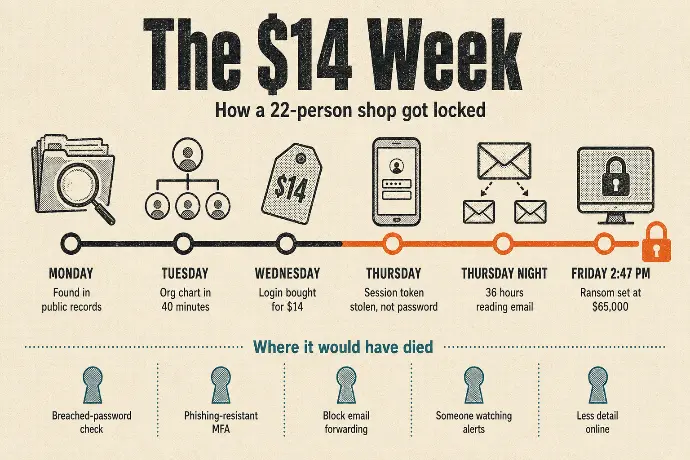
It cannot be phished. A passkey only works on the real site it was made for. Land on a convincing fake of the Microsoft 365 login, and the passkey simply will not fire. There is nothing to hand over. This matters because phishing is how most shop break-ins start; we walked through how a machine shop ransomware attack gets past MFA in a previous post, and the passkey is the step where that story ends.
There is nothing to steal in a breach. The website only keeps your public key, which is useless on its own. When a vendor portal you signed up for in 2019 gets hacked, there is no password list to pull and try against your bank.
There is nothing to reuse. Each passkey is unique to one site and made automatically. The bookkeeper's QuickBooks password is no longer the same as her Microsoft password, because she does not have one.
It cannot be approved by mistake. This is the passkey vs password difference that matters most on a shop floor. Text-message codes and "approve this sign-in" prompts can still be tricked out of tired people. That is why they no longer count as phishing-resistant MFA on most insurance applications, and why a passkey does.
It is also faster. Microsoft says signing in with a passkey is eight times faster than a password plus a code, and it succeeds 98 percent of the time against 32 percent for passwords. Across an office that logs in a dozen times a day, that is real minutes back, and it is the part your office manager will thank you for.
Where Passkeys for Manufacturers Already Work
Support has spread faster than most owners realize. You can sign in with a passkey to Microsoft, Google, and Apple accounts today, plus a growing list of banks, password managers, and business tools.
If you run passkeys in Microsoft 365, the feature is already there through Microsoft Entra, at no extra cost, including on the free tier that comes with every business subscription. Staff can keep a passkey in the Microsoft Authenticator app, on a physical security key, or on the Windows PC itself through Windows Hello. Google Workspace supports them too.
There are two kinds to know about. A synced passkey is backed up to your Apple, Google, or Microsoft account, so it follows you across devices and you are covered if a phone goes in the coolant tank. A device-bound passkey lives on one device only, like a security key you plug in. It is the most locked-down option and the right pick for the owner's account and anyone who can move money.
Now the honest part for a machine shop. Your JobBOSS or E2 login is probably not getting a passkey this year. Neither is the CMM software, the older quoting tool, or the portal your biggest customer makes you upload certs to. Those still run on passwords, and you will run both side by side for a while. That is fine. The goal is to get the accounts an attacker actually wants (email, admin, banking, Microsoft 365) behind a passkey first and let the rest catch up.
How to Roll Out Passkeys for Manufacturers Without Locking Anyone Out
You do not switch everything overnight, and you do not drop passwords on day one. This is the order we use.
1. Start with anyone who can move money or change systems
The owner, the bookkeeper or office manager, and whoever has admin rights on Microsoft 365. These are the accounts an attacker buys first, and they are the ones that get a device-bound key, not just a phone.
2. Give everyone else a passkey alongside their password
Let the rest of the office add a passkey as the faster way in, with the password still available as a fallback for the first few weeks. Nobody gets locked out, and within a month most people stop typing the password because the fingerprint is quicker.
3. Register a backup for every single person
A second device, or a $25 security key that lives in the safe with the person's name on it. A lost phone with the only passkey on it is a Monday morning you do not want. This is the step generic guides mention in passing and shops skip, and it is the one that matters.
4. Plan the shared shop computers
Passkeys are tied to a person and a device, which is a problem in a machine shop, where the DNC PC by the mills, the CMM workstation, and the quoting station on the floor get used by three people across two shifts. Shared shop computers need their own plan: either a personal Windows login for each user with a PIN, or a hardware key on a lanyard that the shift lead signs out. Decide this before enrollment day, not during it.
5. Clean up the passwords that remain
For the ERP, the CMM, and the vendor portals that are still password-only, put those passwords in a password manager and make them long and unique. The passkey rollout is the excuse to finally do this, and it sits right next to the phishing-resistant MFA question on the underwriter's list.
What to Watch Out For
Account recovery. If somebody loses the only device with their passkey and has no backup, they are locked out until recovery goes through. Step 3 above prevents this, and we document which person has which key so that one resignation does not freeze the front office.
Phone turnover. When someone leaves, the passkey on their personal phone has to be revoked in Microsoft 365 the same day, along with everything else on your IT offboarding checklist. A passkey that stays registered to a former employee's phone is a login that still works.
Not everything supports them yet. Covered above. Expect to run both for a year or two, and expect the vendors that matter to catch up in that time.
The MFA Question on Your Renewal Application Just Got Harder
Two years ago the application asked whether you had MFA. Last year it asked whether you had it on email and remote access. This year, more carriers are asking whether it is phishing-resistant MFA, and a text code or an app prompt does not qualify. Passkeys and hardware keys do.
That is the cheapest possible way to answer yes. If you want to see the full list of controls behind that question, read what cyber insurance for manufacturers actually asks for. Our cyber-insurance package puts the passkey rollout, the backup keys, and the shared-PC plan into the format your broker hands the underwriter, so the renewal reads as done rather than promised.
Passkeys for Manufacturers FAQs
What is a passkey in simple terms?
A passkey is a way to sign in with the fingerprint, face, or PIN you already use to unlock your phone or laptop, instead of typing a password. Your device proves it is you to the website, and no password is ever typed, sent, or stored. It only works on the real site it was created for, which is why a fake login page cannot capture it.
Are passkeys safer than passwords?
Yes, by a wide margin. A passkey cannot be phished, because it will not work on a fake site. There is no password for a hacker to steal in a data breach, and nothing to reuse across accounts. Text codes and app prompts can still be tricked out of people; a passkey has nothing to hand over. Security agencies including CISA recommend FIDO-based sign-in, which is what a passkey is.
What happens if I lose the phone with my passkey?
If it was a synced passkey, it is backed up to your Apple, Google, or Microsoft account and still works from your other devices. If it was tied to that one phone with no backup registered, you would use the account's recovery method to get back in, which can take a day. That is why everyone in the shop gets a second passkey or a security key on day one.
Do passkeys in Microsoft 365 cost extra?
No. Passkeys are included with Microsoft 365 through Microsoft Entra, including the free tier that comes with every business subscription. Staff can keep the passkey in the Microsoft Authenticator app, on a physical security key, or on the Windows PC itself. The only cost is the security keys you buy as backups, which run about $25 to $50 each, and the time to roll it out.
Do passkeys replace multi-factor authentication?
A passkey counts as multi-factor authentication on its own. Unlocking it needs the device (something you have) and your fingerprint, face, or PIN (something you are or know), so it covers two factors in one step. It replaces the password-plus-text-code routine, and it is the phishing-resistant MFA that insurance applications have started asking about by name.
How long does a passkey rollout take for a 20-person shop?
Plan on 2 to 3 weeks from first meeting to last person enrolled, with most of that being scheduling around shifts, not technical work. The owner, bookkeeper, and admins take a day. Everyone else enrolls in 10-minute sessions at shift change. The shared floor PCs and the backup keys are what stretch it, so those get planned first and done last.
Ready to Stop Approving Sign-Ins You Didn't Start?
Starlux IT has been the IT partner for small manufacturers around Parkesburg, Coatesville, Downingtown, and Gap since 2004. Our techs are local and on-site, which is how a passkey rollout in a machine shop actually gets done: at the shared PC by the mills, at shift change, with the person who uses it standing there. We document who holds which key so nobody is locked out when a phone dies or a bookkeeper retires. And our managed IT plans put the whole thing, passkeys included, into the cyber-insurance package your broker can hand straight to the carrier.
Free 30 minutes, no pressure. We'll check what you have, show you the gaps, and you'll know exactly where you stand, whether you hire us or not.